
Get started with Novu for Agents
Create your first agent and connect it to Slack in under 10 minutes.
This guide walks you through agent creation, connecting it to Slack, sending your first message to the agent and connecting the agent to your code.
By the end, you'll have a working agent that receives messages from Slack and replies based on its configuration in your code.
Prerequisites:
To get the most out of this guide, you’ll need to:
- A Novu account.
- A Slack workspace where you have permission to install apps.
- Node.js installed on your machine.
Create your agent
- Go to the Novu dashboard.
- In the sidebar, click Agents.
- Click Create agent.
- Fill in the required fields:
- Agent name: The display name for your agent.
- Identifier: A unique slug used in code. You cannot change it after creation.
- Description: Optional.
- Click Setup agent.
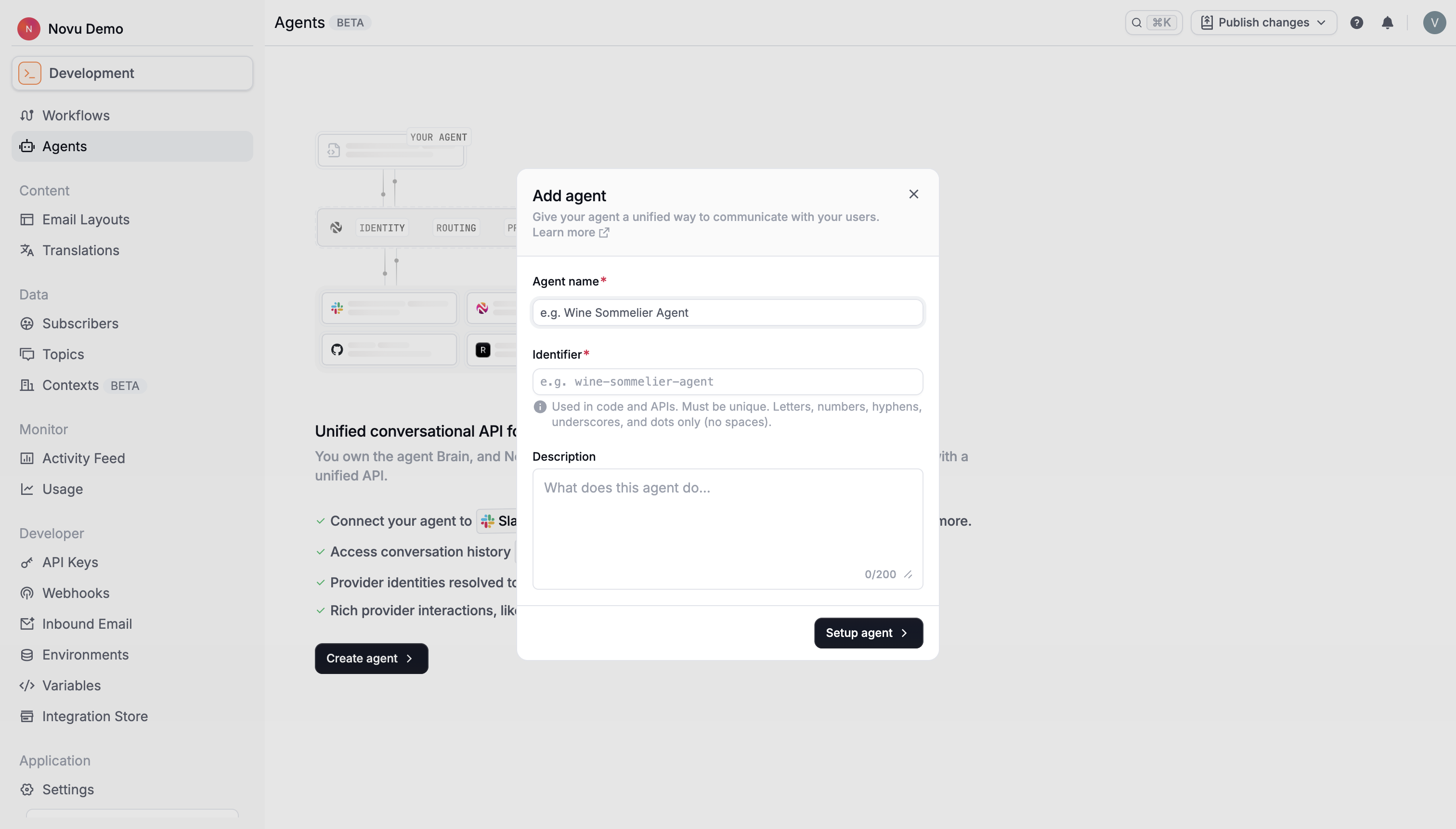
After you create the agent, Novu opens the guided setup page.
Select a provider
- In the setup page, open the Select provider dropdown.
- Select Slack.
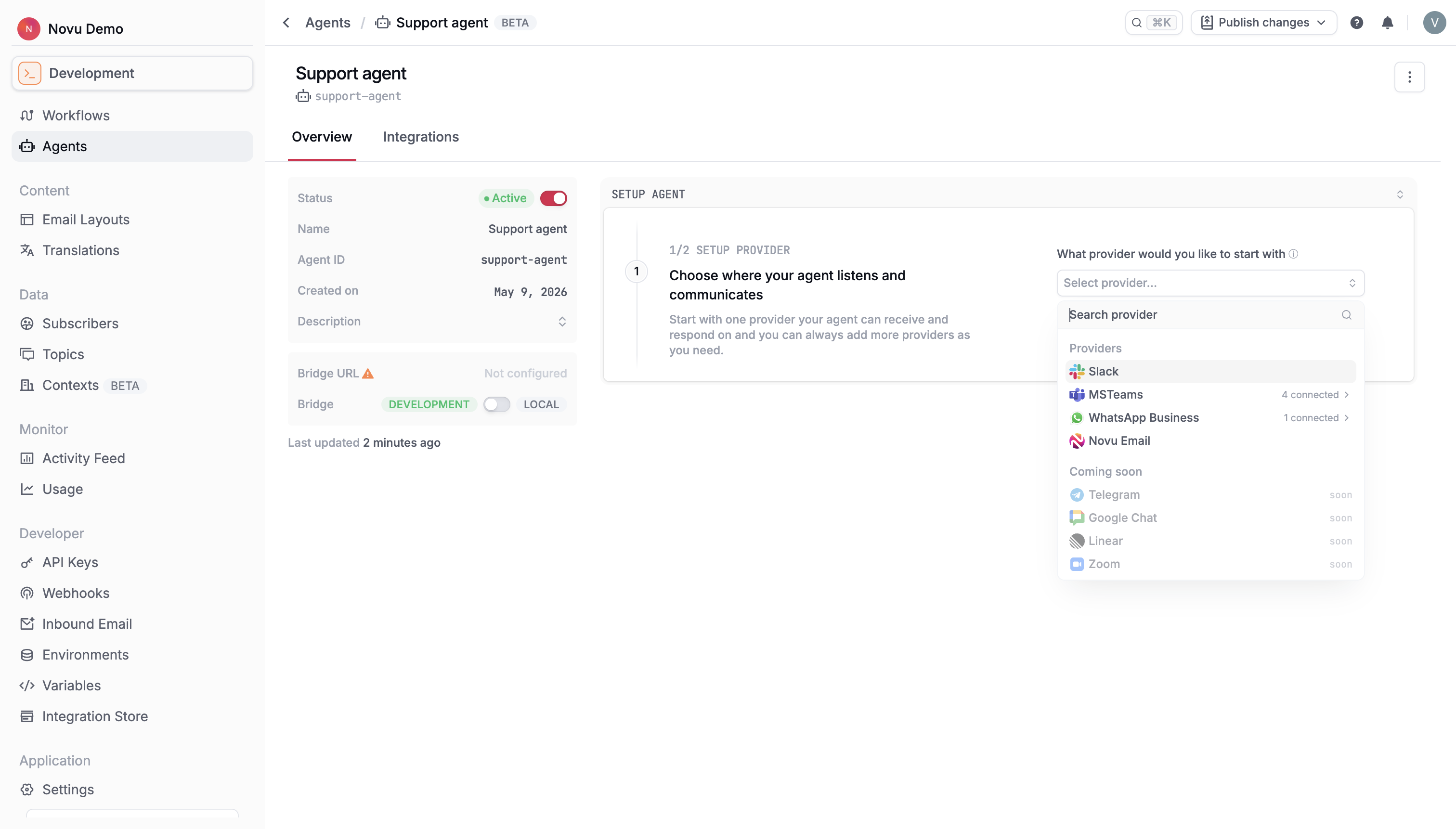
The dashboard detects the selected provider and unlocks the Slack setup steps.
Create a Slack app
Novu can create the Slack app for you automatically using a Slack App Configuration Token. You'll generate the token once, paste it into Novu, and Novu handles the rest.
- In the setup step, click Slack App Configuration Token. This will open the Slack API apps page.
- Under Your App Configuration Tokens, click Generate Token.
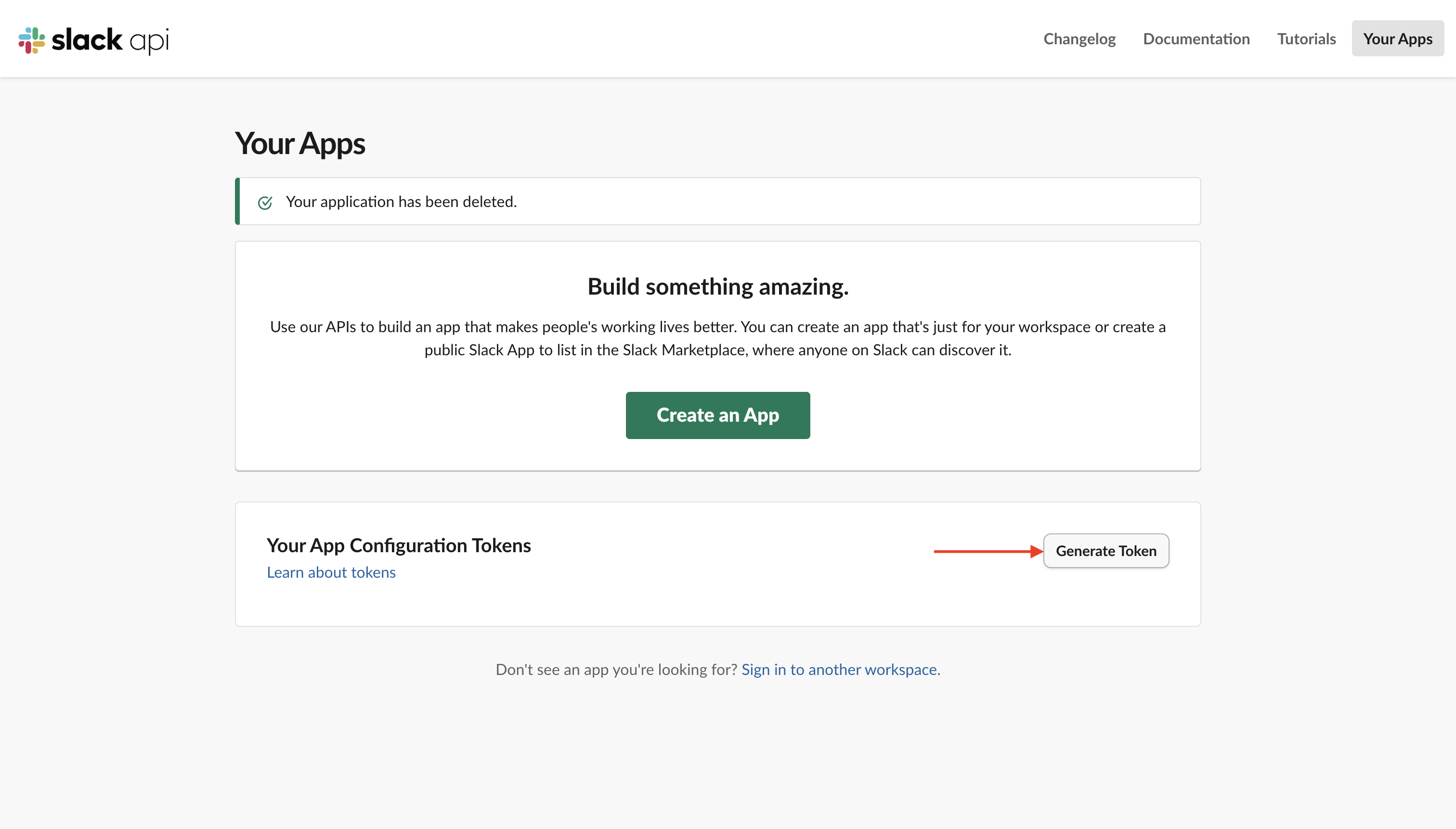
- Select the Slack workspace where you want the agent to live.
- Click Generate.
- Copy the generated token.
- Back in the Novu dashboard, paste the token into the input field and click Create app. Novu uses the token to create the Slack app in your workspace.
The configuration token is used once to create your Slack app and is then discarded. Novu doesn't store it.
Install the app in your workspace
After Novu creates the Slack app, install it to your workspace. This is the same flow your end users will follow when they install the agent.
- Click Install agent. If the button uses the agent name, it may appear as Install [agent name].
- Slack opens a permissions review page.
- Review the requested permissions.
- Click Allow.
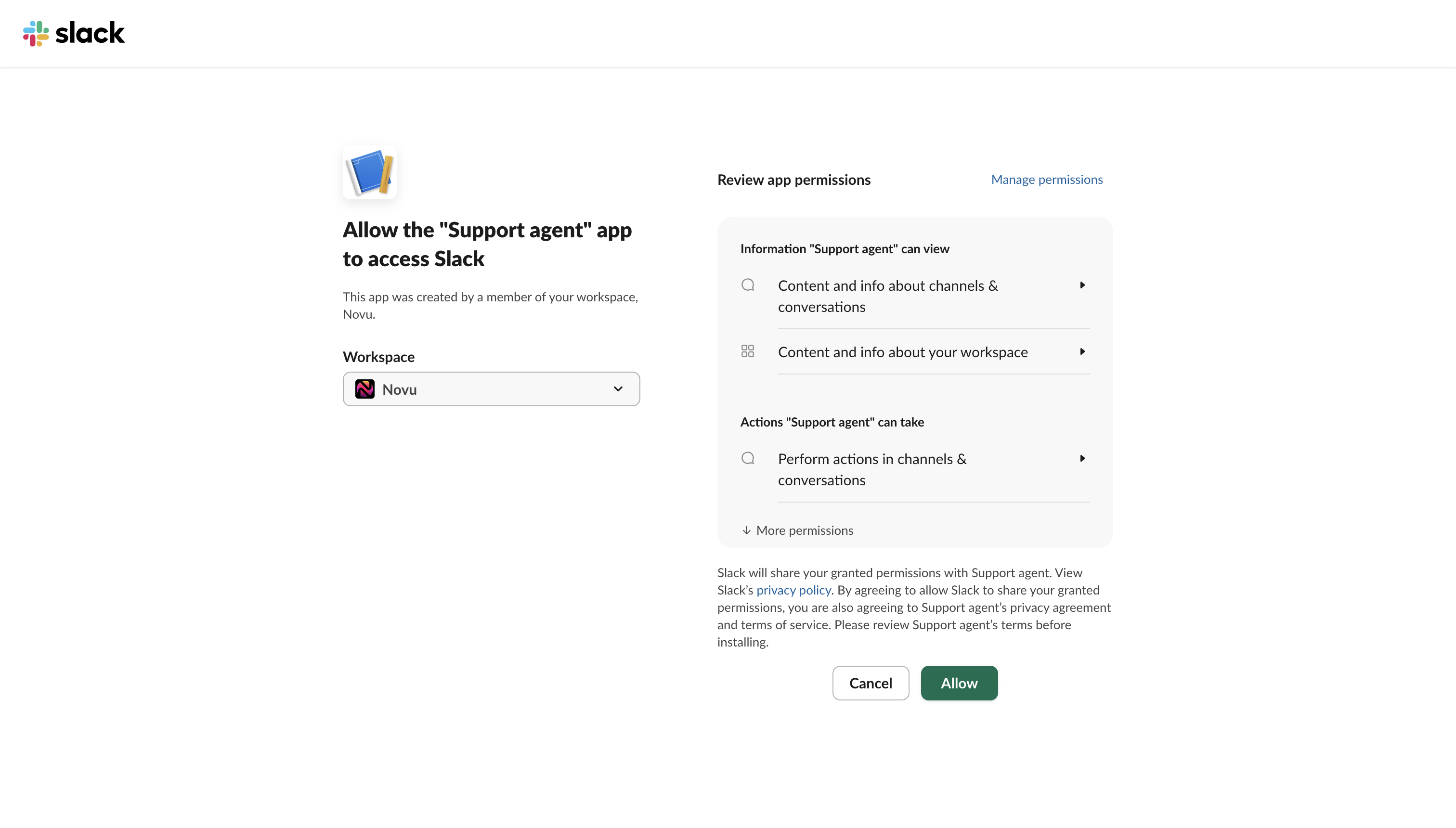
Once installed, you'll receive a welcome message from the agent. The provider connection is now complete.
Scaffold your agent project
With the provider connected, the dashboard shows the next phase: connecting your code. Novu provides a pre-filled CLI command that creates a starter project with your agent identifier and secret key already configured.
- Copy the scaffold command from the dashboard.
- Open your terminal.
- Go to the directory where you want to create the project and paste the command.
- Run the copied command.
The CLI creates a new project with the bridge endpoint preconfigured.
Start your agent locally
Run the dev command below in your project directory. This starts your app, opens a dev tunnel, and registers the bridge URL with Novu so messages can reach your local handler.
The dashboard polls for the bridge connection. Once it confirms the connection, you'll see another message in Slack from your agent
Send a message
Open the Slack channel where your app is installed and send a message to your bot. Your onMessage handler fires, and the reply appears in the thread.
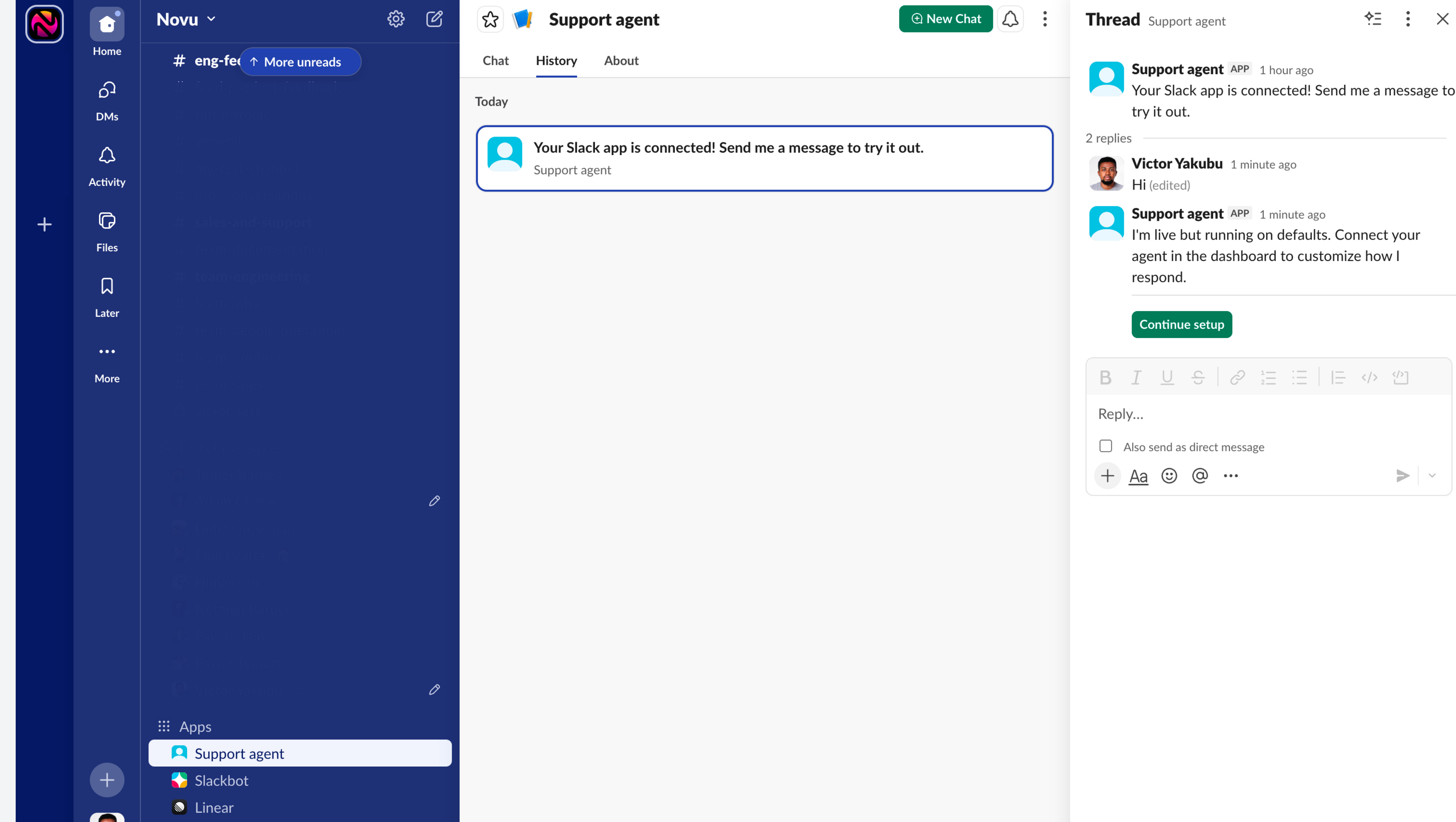
Edit the files in app/novu/agents/ to customize how your agent responds. See Handle Events for the full list of events your agent can respond to.
Next steps
You have a working agent connected to Slack. Here's where to go from here:
Event handlers
Respond to actions, reactions, and resolution events beyond messages.
Reply types & cards
Send markdown, file attachments, and interactive cards with buttons and dropdowns.
Signals
Store metadata, trigger Novu workflows, and resolve conversations.
Agent logic
Connect Vercel AI SDK, LangChain, or OpenAI SDK as your agent's brain.
Add another provider
Connect Microsoft Teams, WhatsApp, or Telegram, your agent code stays the same.